Add function in the workflow
- Open your workflow.
- Scroll down and click on Add function.
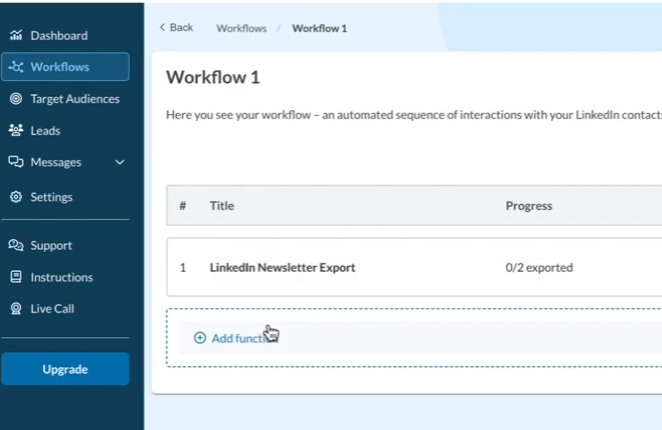
- Under Export contact data, select the function Newsletter Export.
- Click on the ➕ to add the function to your workflow.
Insert newsletter link
To set up the export, you need to insert the link to your newsletter on LinkedIn:
⤴Direct link or
- In LinkedIn, click on your profile picture at the top right.
- Go to Posts and Activities.
- At the top, select More → Newsletter.
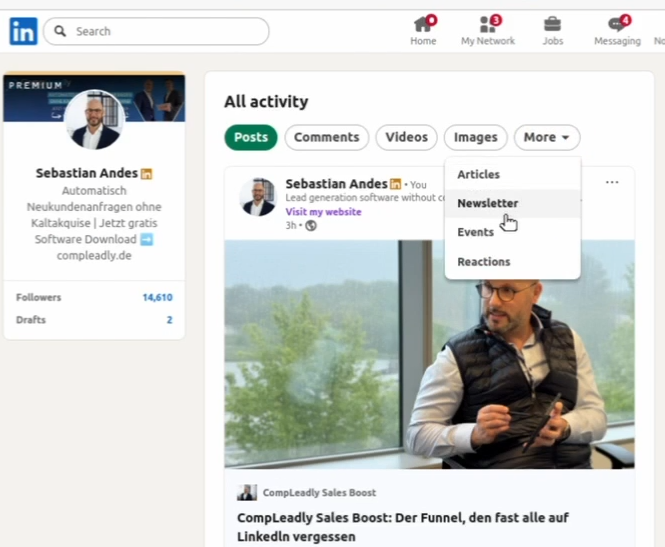
- All newsletters you have created will be displayed there.
- Click on the desired newsletter.
- Copy the link from your browser’s address bar and paste it into CompLeadly.
Export settings
- Enter the maximum number of subscribers to be exported (e.g. 1500).
- Specify that a new export audience should be created.
- Give this audience a name – this will replace the placeholder “XXX” in the view.
The subscribers will automatically be divided into two groups:
- 1st-degree contacts (directly connected with you)
- 2nd- and 3rd-degree contacts (not connected with you, unconnected)
Reuse audience
You can find the created audience in the Audience section. From there, you can use your subscribers for further workflows or actions.
Create newsletter (if none exists yet)
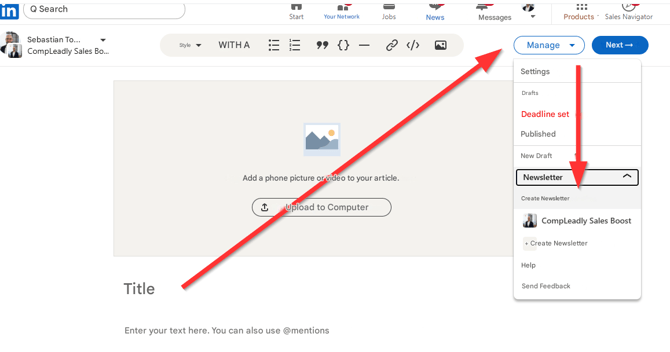
If you do not yet have a newsletter on LinkedIn, you can create one:
- Go to Home → Write post/article.
⤴Direct link - Select Create newsletter.
- Give your newsletter a title, description, and start with the first issue.
Support
If you have any questions during setup, you can always contact support via the support button.