This approach requires several preparatory steps, such as creating categories and utilizing specific tools like CompLeadly and Google Sheets.
Creating and Managing Categories in SmartChat
To transfer contacts from SmartChat to your CRM, you must first create a category and assign it to the relevant contacts. A category could be named “Test 1”, for example. You can then assign a color to this category, though the choice of color does not affect the process.
The contacts assigned to this category should then be imported into a target group within your CRM system. In the next step, you designate the category as “CRM” to simplify the transfer of contacts into the CRM system.
Transferring to the CRM System
Once the contacts have been assigned to a category, you can save them into a target group within your CRM system. The target group will automatically be created in your CRM system as soon as you assign the category to the respective contacts. In this example, the contact “Max Müller” is automatically saved into the “CRM” target group by assigning them to the “Test 1” category.
Creating a Sequence in the LinkedIn Tool
The next step is to create a sequence in the LinkedIn tool that enables the profile export of the selected target group. You can either create a new sequence that only includes the profile export function, or you can add this function to an existing sequence.
Detailed Export and Integration with Google Sheets
After selecting the target group in the profile export function, you can further configure the export function in detail. If you want to include all relevant contact data, choose the “Detailed Export” option. It’s important to select “Google Sheets” as the export format. You’ll need to create an empty Google Sheets document where the contact data will be transferred.
It’s recommended to set a waiting time of 99999 to prevent contacts from being transferred multiple times. Alternatively, you can set a condition, such as “has been visited”, to ensure that contacts already transferred are removed from the target group.
Setting up Zapier to Transfer Contacts to the CRM System
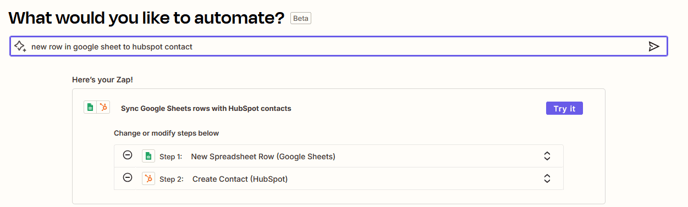
The final step is to set up Zapier to automatically transfer the new contacts from the Google Sheets document into your CRM system. Example with Hubspot
Automating the Process
You can automate the entire process by scheduling the transfer to occur once daily outside of business hours, for example at 10:30 PM or 11:00 PM. Make sure that your computer is on and CompLeadly is running, so the process can be executed as planned.