Table of Contents
- Introduction
- Automatic Processing of Contacts in Success Sequences
- Manually Adding Contacts to a Sequence
- Using the Chrome Extension to Add Contacts
- Frequently Asked Questions & Solutions
1. Introduction
Success sequences in CompLeadly enable automated follow-ups and communication with new contacts. However, in certain cases, contacts that were manually added via LinkedIn are not automatically included in the sequence. To ensure these contacts are still integrated into the sequence, there is a simple way to add them manually.
2. Automatic Processing of Contacts in Success Sequences
Success sequences automatically access contacts added to the network via CompLeadly. Once a connection request is sent and accepted through the system, the predefined message (e.g., a welcome or thank-you message) is sent automatically.
Problem: If a connection is made directly via LinkedIn (without using CompLeadly), the sequence does not automatically detect it. In such cases, the contact must be manually added to the sequence.
3. Manually Adding Contacts to a Sequence
If a new contact has been added outside of CompLeadly, they can be manually added to the success sequence to ensure they receive the scheduled messages. Follow these steps:
- Disable the graphical view in the sequence overview to access the detailed sequence view.
- Open the first campaign message function within the sequence.
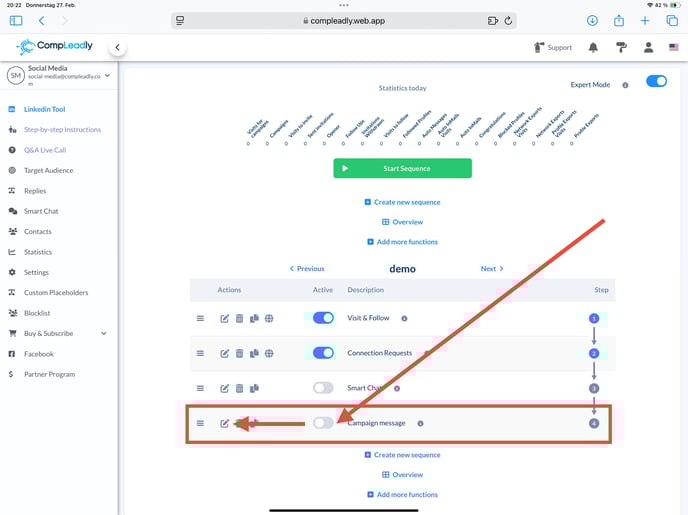
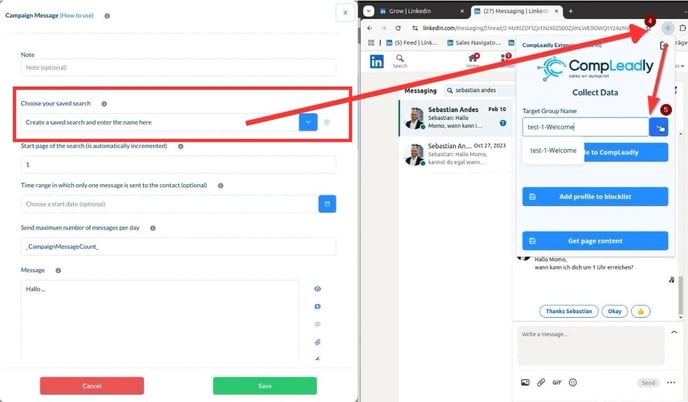
- Identify the correct target group, which is automatically named following the pattern
[Sequenzname]-Welcome. - Open the LinkedIn chat or profile of the contact you want to add to the sequence.
- Use the Chrome Extension to add the contact’s profile to the correct target group.
4.Installing the Chrome Extension to Add Contacts
To manually transfer a contact into the success sequence, the CompLeadly Chrome Extension is required. If it is not yet installed in Chrome, follow these steps:
Installation of the Chrome Extension
5. How Can I Check If the Profile Has Been Added?
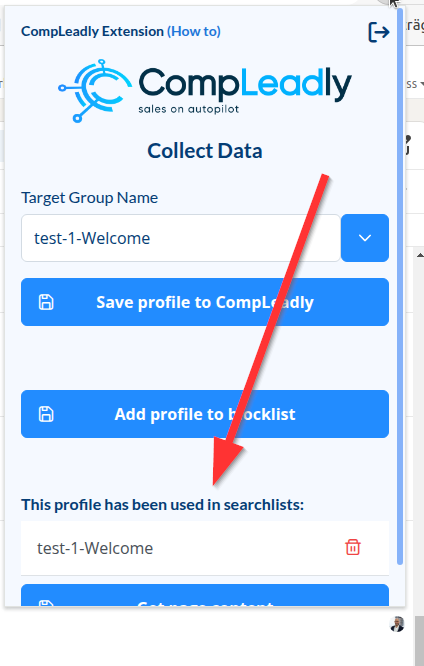
A) In the Chrome Extension
You can also remove the contact from the target group if needed.
B) In CompLeadly
1. Click Edit under the target group.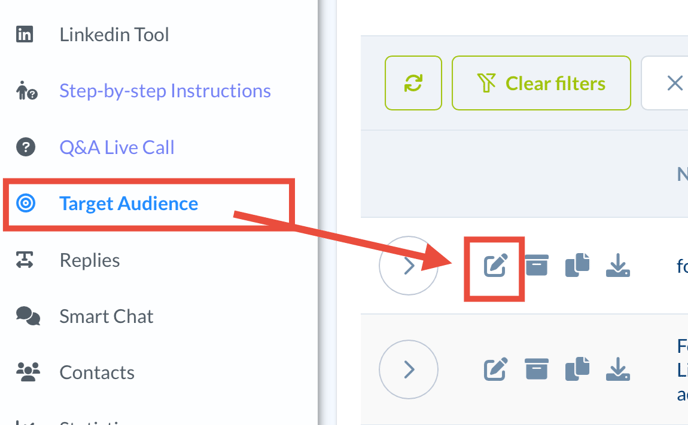
2. If there are many contacts, you can filter by name or creation date.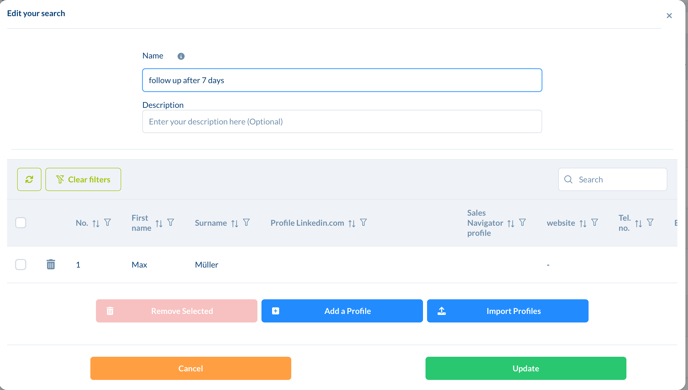
6. Frequently Asked Questions & Solutions
Question: I manually connected with a contact – will they still receive the thank-you message?
Answer: No, the sequence does not detect this automatically. The contact must be manually added to the target group via the Chrome Extension.
Question: I don’t see my target group in the Chrome Extension. What can I do?
Answer: Ensure the sequence is correctly named and that the correct target group name appears in the extension. If the sequence is not visible, refresh the page or check if the graphical view is disabled.
Question: The Chrome Extension does not save the profile. What could be the reason?
Answer: Check if you have the latest version of the extension installed. If the issue persists, clear your browser cache and try again.
If the problem continues, press the Support button.