What is a webhook?
A webhook is an automated data transfer that is triggered by a specific event. As soon as this event occurs, CompLeadly sends relevant information to a URL defined by you.
Typical use cases:
-
Automatically transfer contacts to the CRM
-
Track activities (e.g. connection requests)
-
Connect workflows between tools
Create a webhook in CompLeadly
How to create a webhook:
-
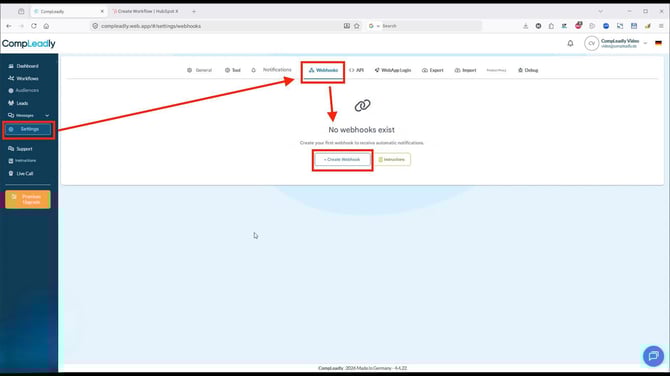
Go to Settings
-
Open the Webhooks tab
-
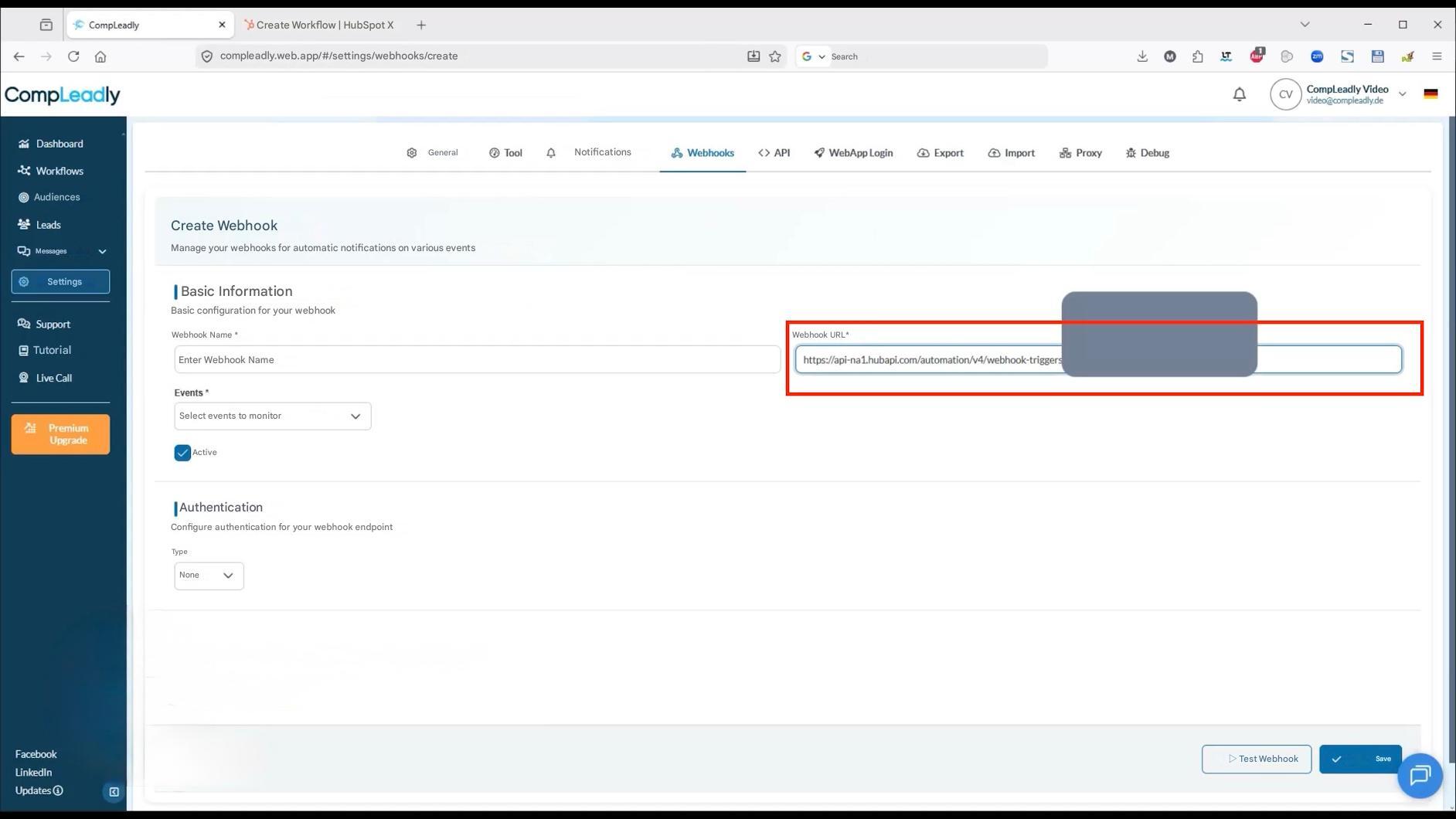
Click on Create webhook
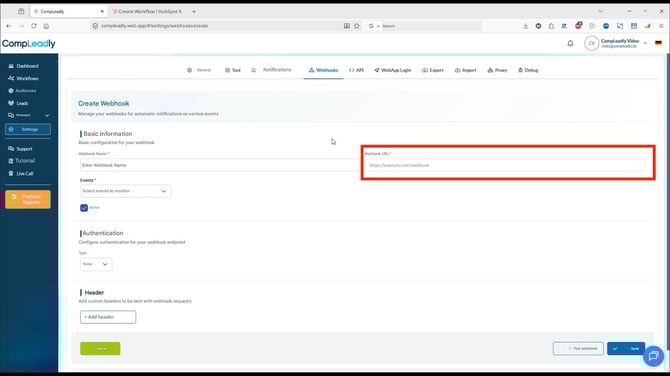
Then you need to provide the following information:
-
Name: Freely selectable for better overview
-
Webhook URL: Generated in your target system (e.g. CRM)
-
Event: Defines when the webhook is triggered
Create webhook URL in the CRM
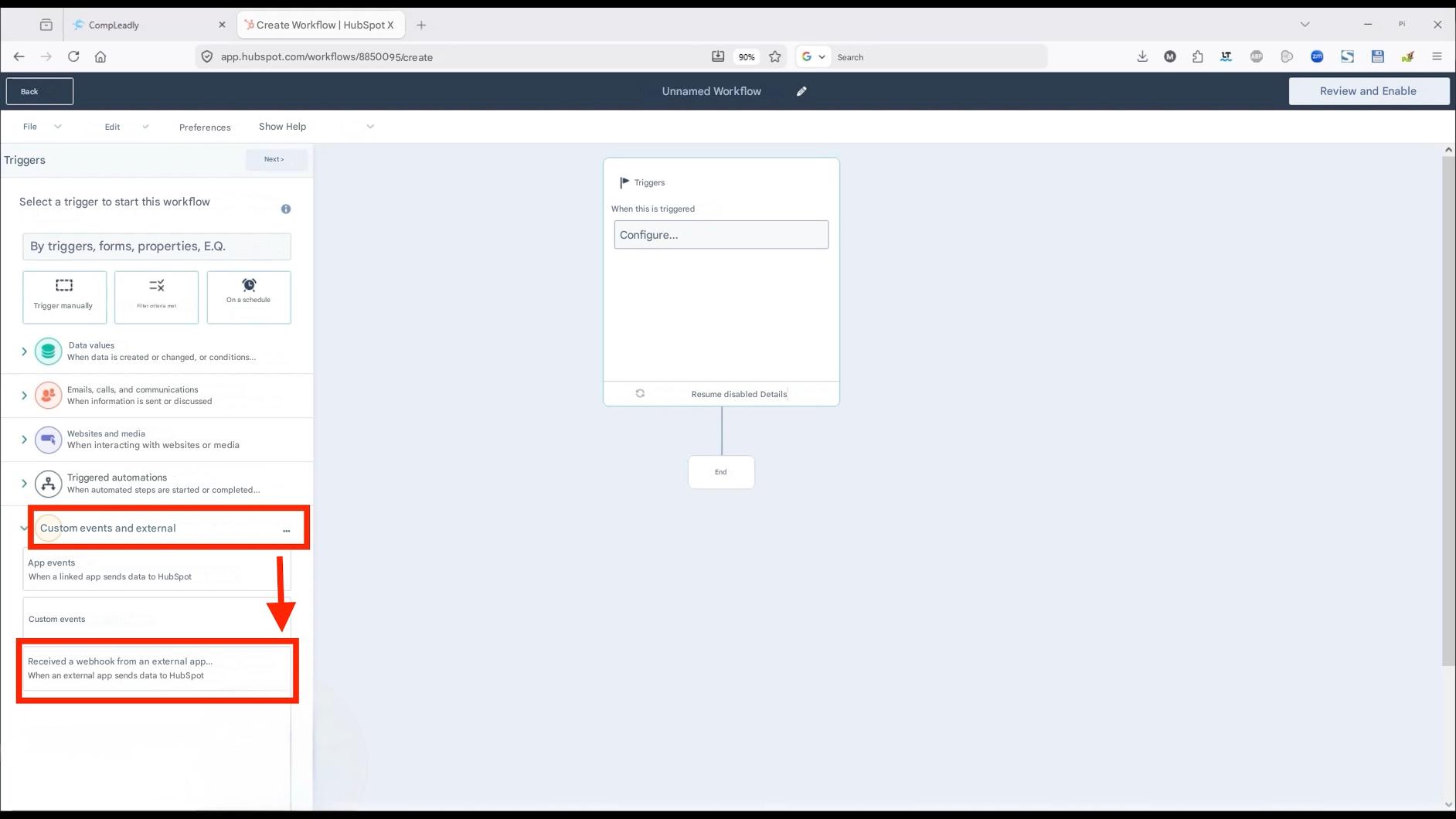
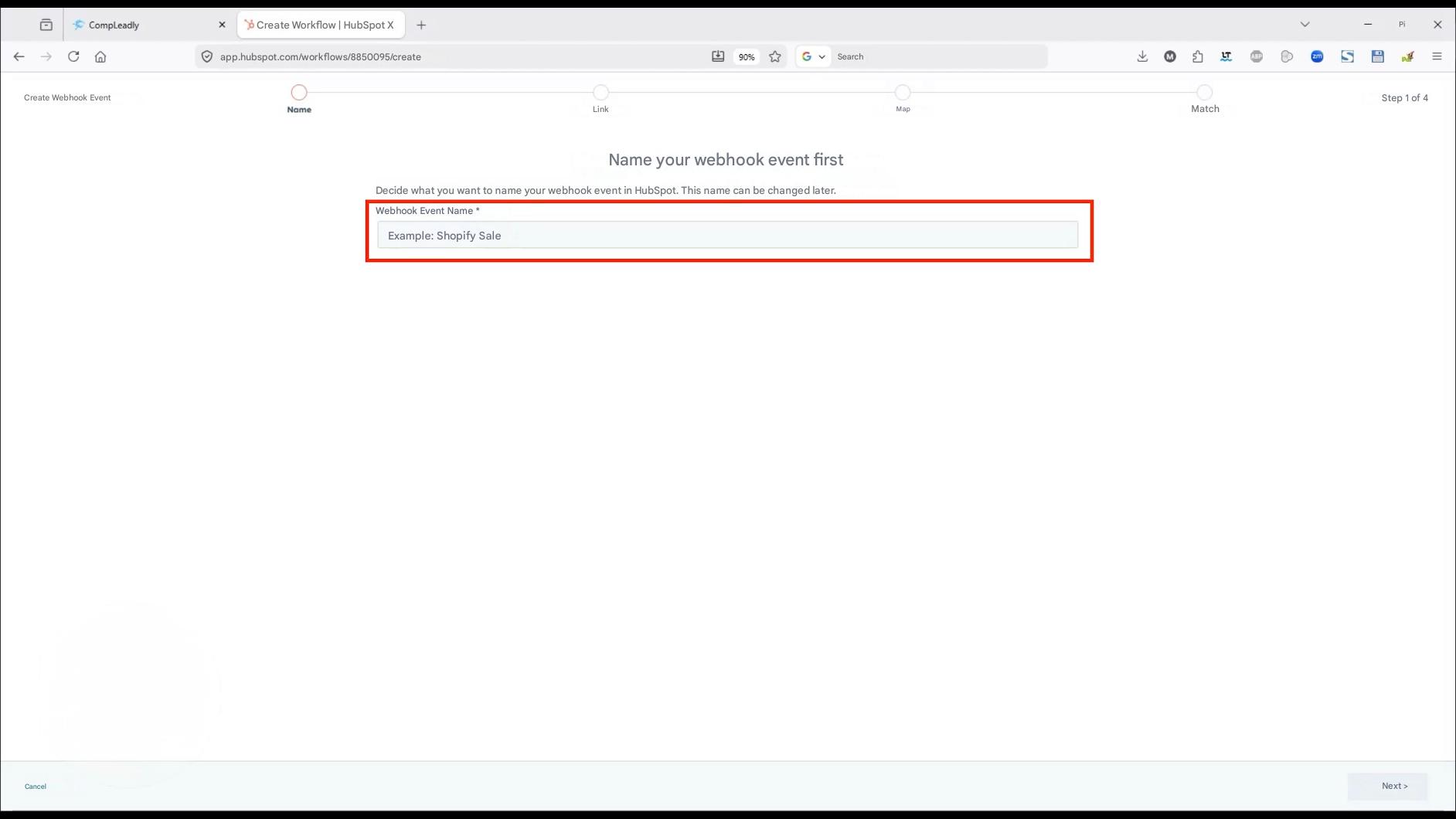
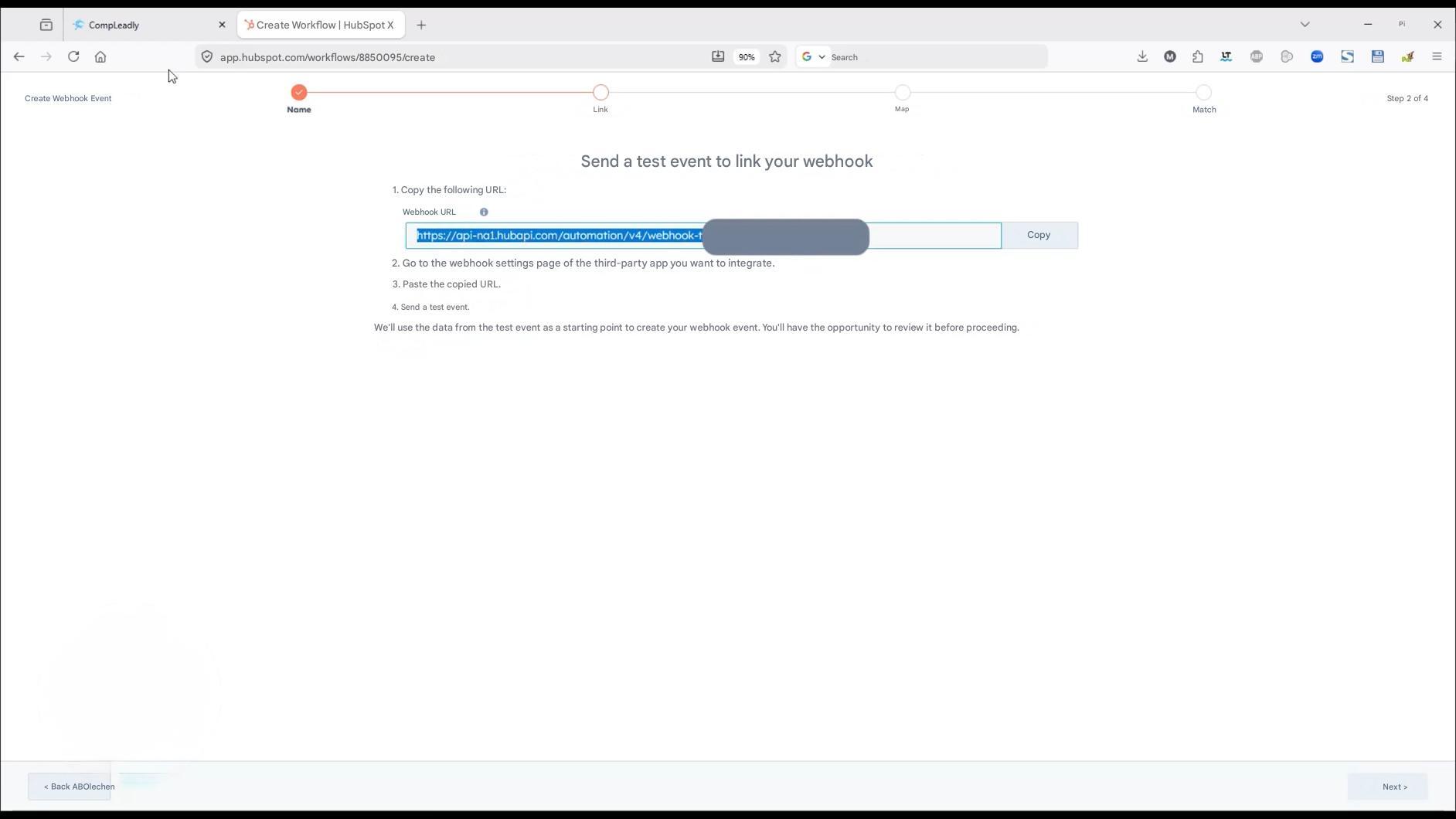
You receive the webhook URL from the tool you want to send the data to (e.g. CRM system).
Example process:
-
Create a workflow or event in your CRM
-
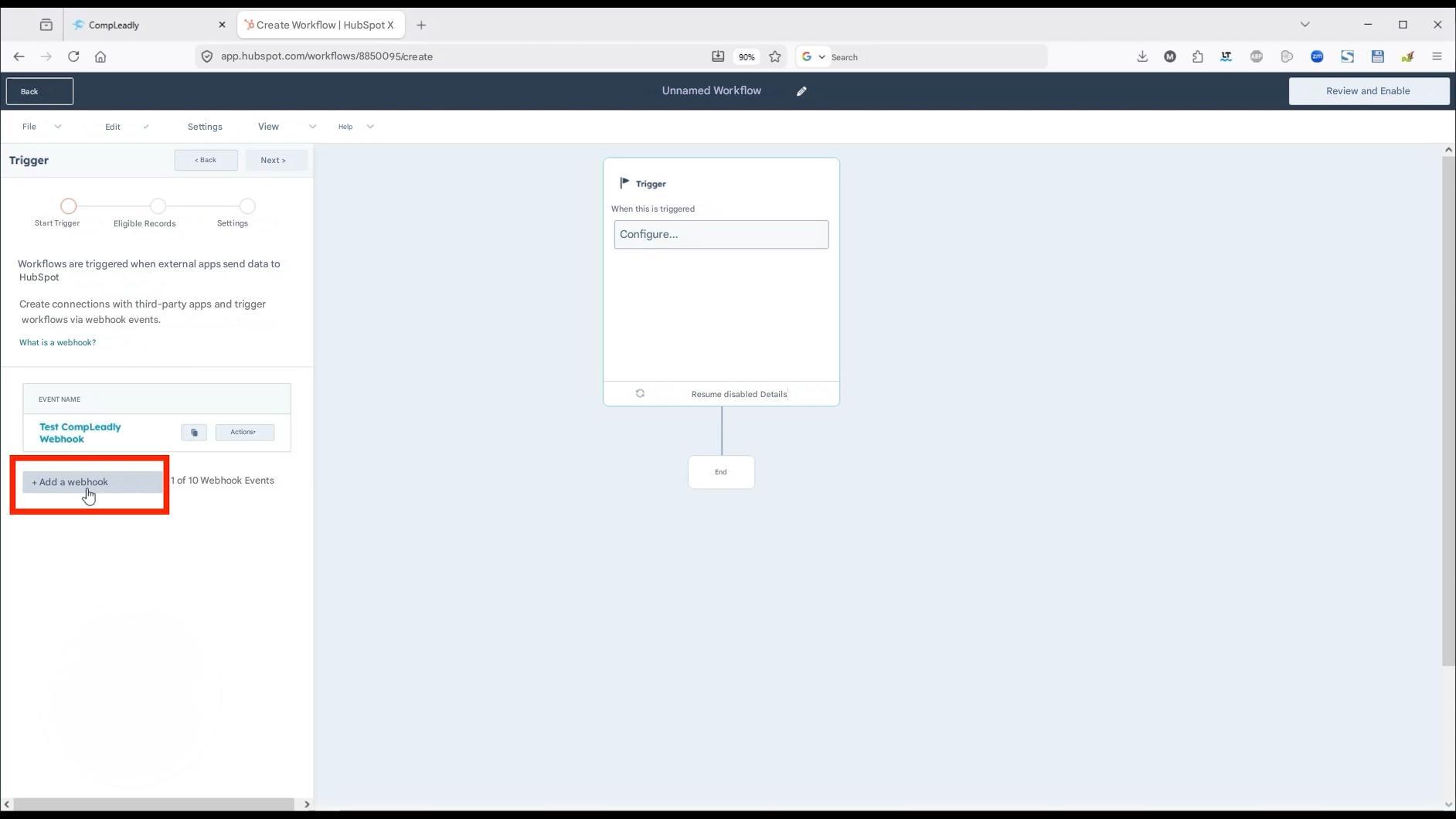
Add a webhook there
-
Generate the URL
-
Copy this URL into CompLeadly
This process is similar in most tools, even if the naming may differ.

![CompLeadly
Create Workflow | HubSpot X
+
입 app.hubspot.com/workflows/8850095/create
Create Webhook Event
Name
Link
90%
Search
Map
Match
Pi
X
S
Step 3 of 4
Next >
Map the data for your webhook's properties
All properties from your webhook's test event are included by default. Review each property to:
1. Give it a label that makes it easy to identify in HubSpot.
2. Set the data type for each incoming third-party property label.
3. Add or remove properties that are needed for your webhook event.
There are errors or missing values in the properties listed below. Please fix these before proceeding.
Third-party property label *
userId
HubSpot property label
Data type
['userId']
Third-party property label *
name
HubSpot property label*
['leadData']['name']
Data type *
Third-party property labels *
email
HubSpot property label
['leadData']['email']
Data type *](https://user.compleadly.com/hs-fs/hubfs/undefined-Apr-10-2026-01-15-03-7797-PM.jpeg?width=1884&height=1060&name=undefined-Apr-10-2026-01-15-03-7797-PM.jpeg)
Select event
The webhook is triggered by a specific event.
Currently available:
-
After sending a connection request
Additional events can be added, e.g.:
-
New contacts in the network
-
New messages in Smart Chat
If you need additional events, you can contact support at any time.


Test webhook
After setting it up, you can test the webhook directly:
-
Click on Test webhook
-
Check whether the test was successful
-
Verify in the target system (e.g. CRM) whether the data has arrived
What data is transmitted?
When a webhook is triggered, various information is transmitted, including:
-
User ID
-
Event type (e.g. “Connection Request Sent”)
-
Timestamp
-
Workflow ID and search list
-
Name of the contact
-
Email address (if available)
-
Company
-
Additional metadata
You can further process this data in the target system, e.g. for automations or CRM entries.
Further processing in the target system
In the CRM or automation tool, you can define:
-
Which data is mapped to which fields
-
Which actions are triggered after the webhook is received
Examples:
-
Create or update a contact
-
Start follow-up processes
-
Assign data to lists or pipelines
The exact setup depends on the respective system.
Notes on configuration
-
Advanced webhook settings are usually only relevant for technical users
-
For most use cases, the default configuration is sufficient
-
The logic of further processing is defined in the target system
Conclusion
With webhooks, you can seamlessly connect CompLeadly with other tools and automate processes. Once set up, data is reliably transmitted based on defined events and can be processed directly
If you need support with setup or implementation, simply use the support within CompLeadly.