With CompLeadly, you can automatically save profiles that are processed during a workflow to a dedicated target group.
You can precisely define which profiles should be saved—for example, all scanned profiles, profiles that were actually visited, or only contacts for which the respective action was successfully completed.
This allows you to collect the results of individual functions and reuse them later in other workflows.
Table of contents
-
Where to find the setting
-
Which profiles can be saved
-
What “Action completed” means
-
Select or create a target group
-
When the target group is created
-
Where to find the target group afterwards
-
Typical use cases
1. Where to find the setting
Open the desired function within your workflow, for example Connect.
Then switch to the Advanced section.
There you will find the setting:
“Save profiles to a target group”
This setting allows you to decide which contacts processed during the function should also be saved to a target group.
2. Which profiles can be saved
Depending on the function, the following options are available:
No profiles
No contacts will be additionally saved to a target group.
Scanned profiles
All profiles that CompLeadly detects and processes within the selected LinkedIn or Sales Navigator target group will be saved.
The profile does not need to be opened, nor does any action need to be performed.
Visited profiles
The contact will only be saved once CompLeadly has actually visited the LinkedIn profile.
Action completed
The contact will only be saved if the actual function was successfully completed.
3. What does “Action completed” mean?
The meaning depends on the respective function.
For the Connect function, “Action completed” means:
The connection request was actually sent.
For a messaging function, it means accordingly:
The message was actually sent.
This allows you to create a target group containing only contacts for whom the desired action was successfully completed.
This is particularly useful if you want to contact these profiles again later in another workflow.
4. Select or create a target group
Under:
“Name of the target group where the profiles should be saved”
you can define which target group the contacts should be saved to.
You can assign any suitable name, for example:
-
Connection Requests August
-
Visited Managing Directors
-
Contacted Contacts
-
Connected Contacts DACH
If a target group with this name already exists, the new profiles will be added to that target group.
If no matching target group exists yet, CompLeadly can automatically create a new target group.
5. When is a new target group created?
A newly entered target group is not created immediately when you enter its name.
If CompLeadly displays:
“No target group exists for this function. A new target group will be created after you click Save.”
you need to click “Save” in the bottom-right corner.
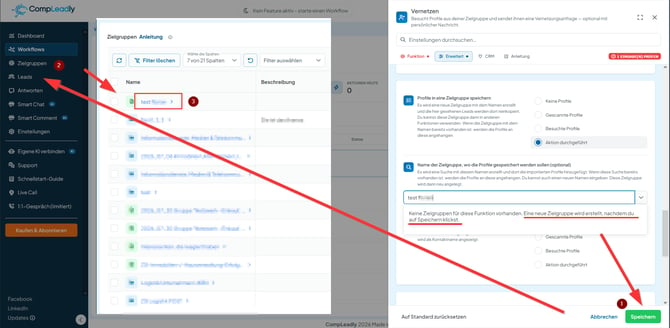
Right-click the image ➔ “Open image in new tab” to enlarge it.
Only then will the settings be applied and the new target group be created.
You do not need to create the target group separately under “Target Groups” beforehand.
6. Where can you find the saved target group?
After saving, you will find the target group in the left-hand CompLeadly menu under:
Target Groups
There you can view the saved contacts and use the target group in other functions or workflows.
While the workflow is running, additional matching profiles will be added according to your selected setting.
7. Typical use cases
Automatic saving is useful, for example, if you want to:
- collect all successfully invited contacts in a separate target group,
- connect with visited profiles later,
- use contacted contacts in another workflow,
- segment contacts based on different workflow steps,
- track which profiles were actually processed by a specific function.
Example: Save only successfully connected profiles
You are using the Connect function and afterward want to continue working only with contacts to whom a connection request was actually sent.
Select:
Save profiles to a target group → Action completed
Then assign a name to the target group and click “Save.”
CompLeadly will then save only those profiles to this target group for which the connection action was actually completed.