What does follow-up mean?
Follow-up means reaching out to someone again after a previous interaction. The goal is to build on the last communication and prompt a response or action. Many contacts read a message, plan to reply later, and then forget – this is where follow-up helps.
Setting up the follow-up sequence
1. Create a new sequence
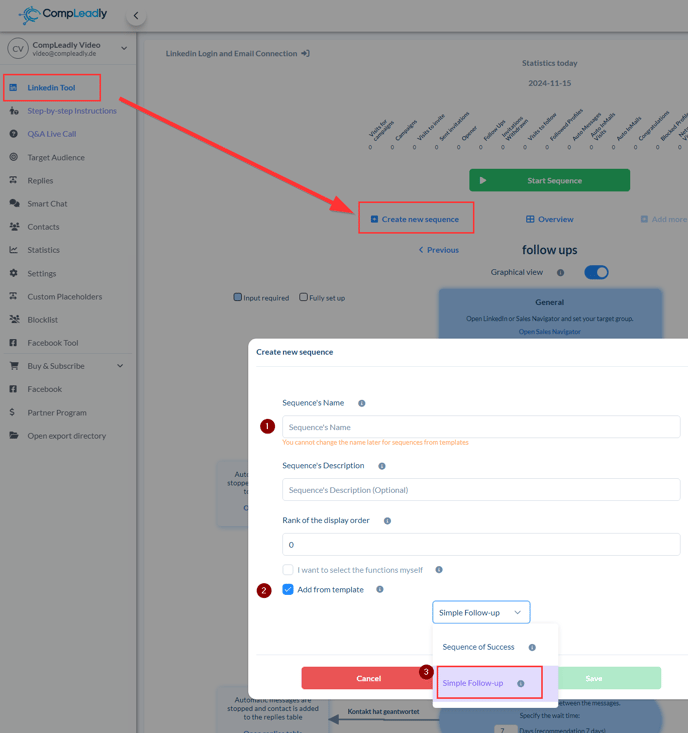
- Open the LinkedIn Tool section in the CompLeadly tool.
- Click on "Create New Sequence."
- Name the sequence appropriately, e.g., "Follow-ups."
2. Select a template
- Under "Template," choose the option "Simple Follow-Up."
- Click on "Save" – it only takes a few seconds.
3. Define target groups for follow-ups
You can create target groups for follow-ups in various ways:
- Directly in LinkedIn using the Sales Navigator.
- By importing existing target groups.
- Automatically via Smart Chat, which syncs your messages.
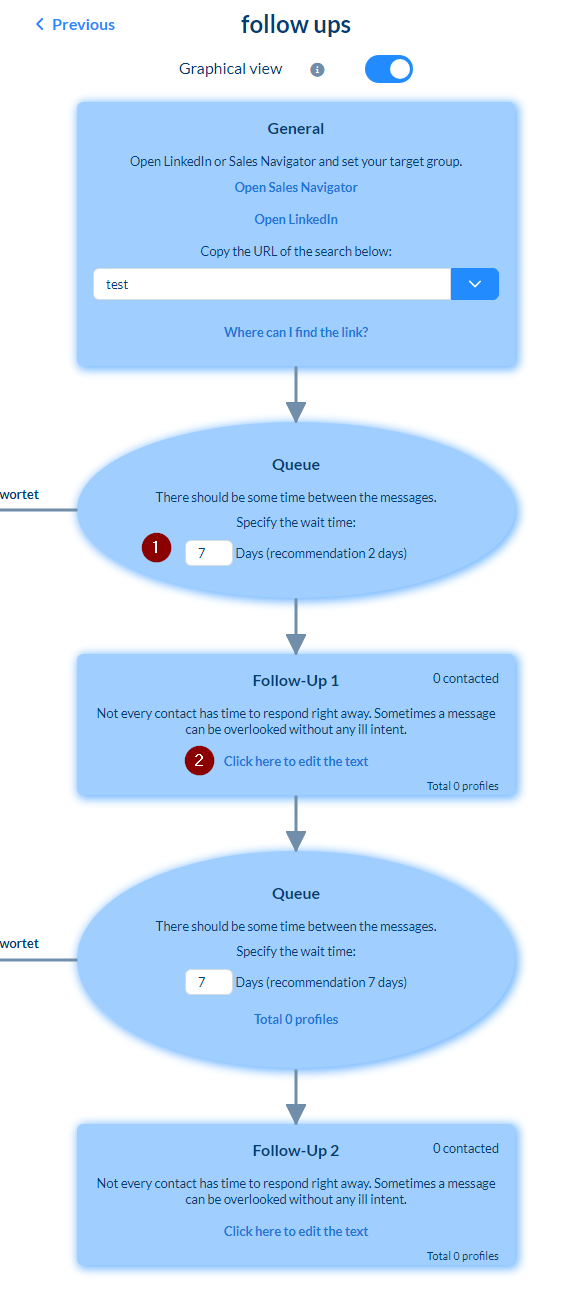
4. Set up texts and time intervals
- Define how long to wait before following up (e.g., 7 days).
- Enter the text for your first follow-up, e.g., "Did you receive my previous message?"
- Add more follow-ups if needed and adjust the intervals individually (e.g., 10, 20, or 30 days).
Use Case: Using Categories to Quickly Follow Up with Smart Chat
- Create a new category in the Smart Chat feature, e.g., “Follow-Up After 7 Days,” and assign a target group.
- Assign chats/contacts to this category.
- These contacts will automatically be added to the corresponding sequence where you selected the target group.
