Accessing the Server
Logging In
After your purchase, you will receive access data and a link from us. Enter this data on the login page and click on "Login". If you have only purchased one server, only this server will be displayed. Click on PVE, then the server and then on "Console" to gain access.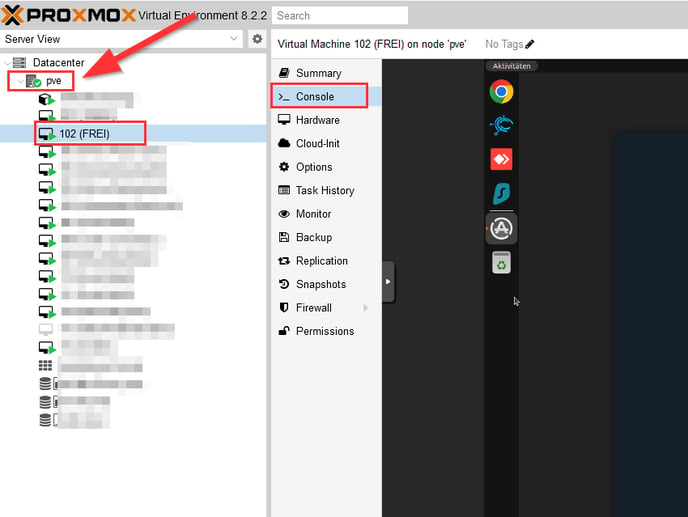
Pre-installed Applications
Various applications are pre-installed on the server:
- CompLeadly: Log in with your credentials. Enter your LinkedIn login details once.
- Google Chrome: For accessing LinkedIn and other web services.
- Surfshark: Surfshark is pre-installed, and you can log in with your license. We can also install other VPN clients for you. Please let us know which one.
"@-Sign" Issue
If the @ sign doesn't work, you can search for it on Google and copy it using "Ctrl+C" and paste it with "Ctrl+V."
Settings and Notifications
Email Notifications
Activate email notifications in the CompLeadly settings. This will notify you if CompLeadly goes offline or if the statistics fall below a certain level at a specific time.
Server Performance
If the server is running slowly, you can shut it down and restart it using the icon in the top right corner. Alternatively, you can open the entire cloud server access in a separate window through the Console and "Node VCN."
Using the Web App
Web Access
Since the server is slower than your regular computer, we recommend using the web app on our website. Log in there to change all settings and sequences. These changes will be automatically synchronized with your cloud server.
➔ Direct link to the Web-App https://compleadly.web.app/#/auth/signin
LinkedIn automation must be started directly on the cloud server or the installed computer software. However, any changes made in the web app will be synchronized.
Smart Chat
With Smart Chat, you can see all synchronized messages from your LinkedIn chat and reply directly. The messages will then be sent via LinkedIn on the server.
Cloud Storage
To access documents and files on the cloud server, use cloud storage services like Google Drive or OneDrive. Do not drag and drop files directly onto the server. Instead, log in to these cloud services.
Support and Assistance
If you have any questions or need assistance, you can press the Support button anytime or write us an email.