Important to understand: ChatGPT accesses CompLeadly – not the other way around. For this, you need a ChatGPT plan that allows connectors (Plus, Pro, Business, Enterprise, or Edu). The connector is only added on the web, but then also works in the desktop and mobile app.
Step 1 – Go to the MCP settings in CompLeadly
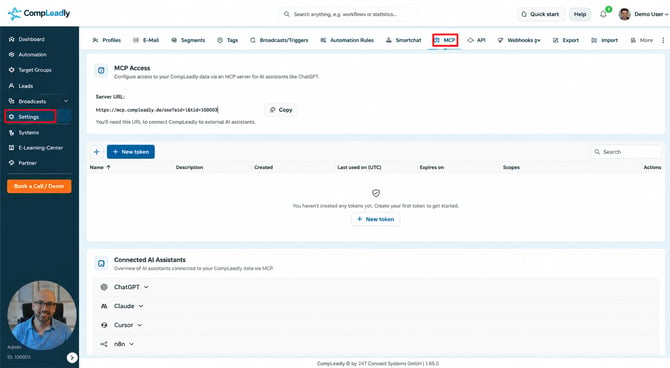
Go to Settings in the menu on the left and click the MCP tab in the bar at the top.
⚠️Image too small?
Right-click the image and then select “Open in new tab” to enlarge it, or zoom in.
Step 2 – Copy the server URL
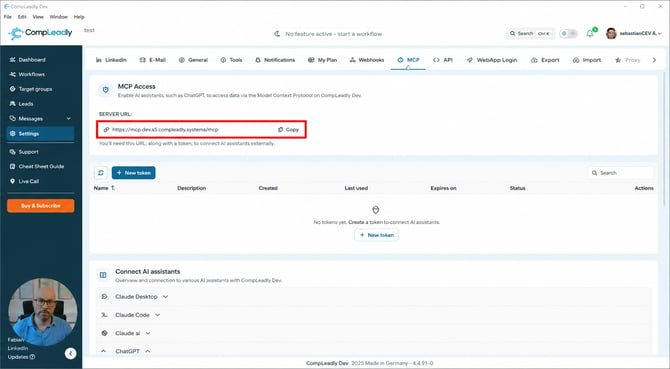
Under MCP access, you’ll find the server URL. Click Copy – you’ll need this URL in ChatGPT in a moment.
Step 3 – Built-in ChatGPT instructions (for orientation)
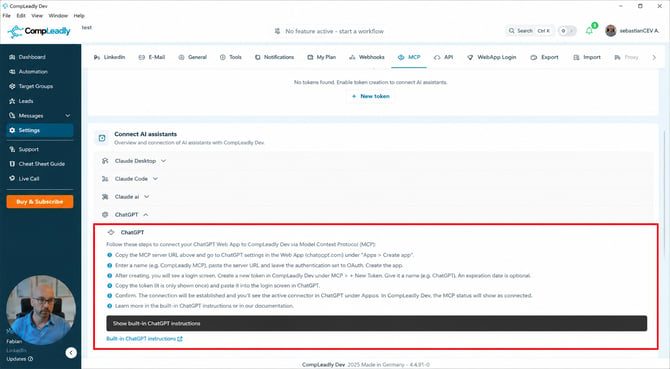
Further down on the page under Connect AI assistants, you’ll find the complete step-by-step instructions including the server URL again under ChatGPT. You can use this as a cheat sheet at any time.
Step 4 – Open ChatGPT in the browser
Open ChatGPT in your web browser (chatgpt.com). Click on your profile at the bottom left to go straight to the settings.
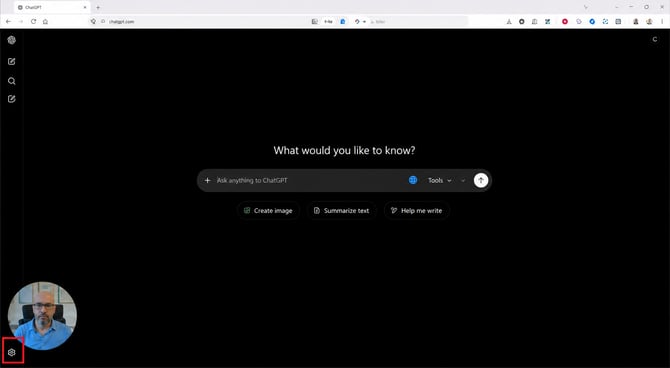
The connector is only added on the web. In a Team/Business/Enterprise workspace, only an administrator can activate developer mode (next step). In older ChatGPT versions, the section is called “Connectors” instead of “Apps”. Step 5 – Create app
Step 5 – Create app
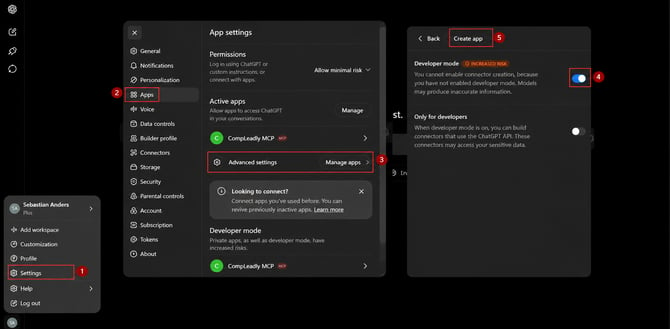
The following screenshot shows the complete path in the ChatGPT settings (the red markings 1–5):
-
Click Settings at the bottom left.
-
Go to Apps in the menu.
-
Click Advanced settings.
-
Activate developer mode (the “Increased risk” notice is normal – necessary because CompLeadly is not an app from the ChatGPT Store).
-
Click Create app.
Then enter the following:
-
Name: e.g.
CompLeadly MCP -
Description: optional
-
Server URL: paste the URL copied in step 2
-
Authentication: leave OAuth selected
Confirm with Create. The message “OpenAI has not reviewed this MCP server” is normal – we developed the server ourselves.
Step 6 – Login screen: have your personal access token ready
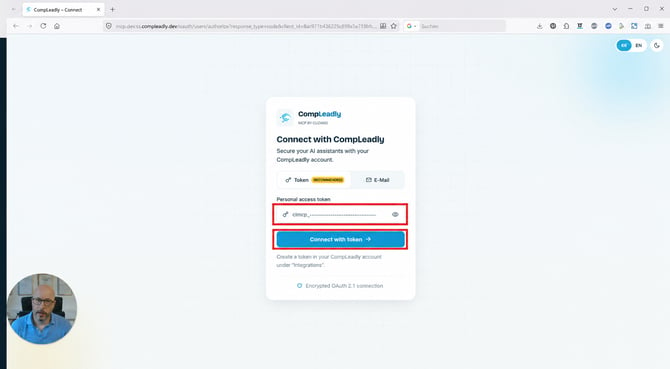
The Connect with CompLeadly screen opens. Here you’ll need your personal access token in a moment. You’ll now create it directly in CompLeadly (steps 7–8) and then paste it here.
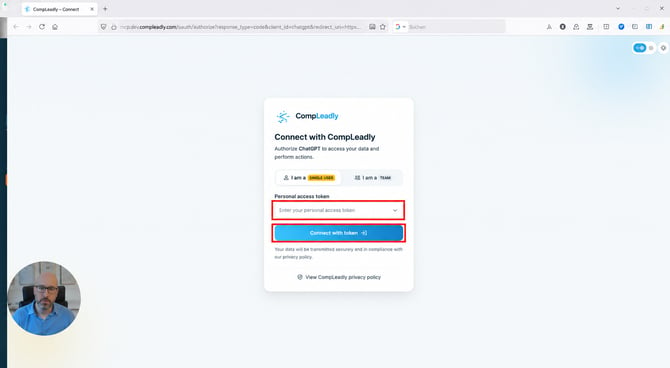
Step 7 – Create a new token in CompLeadly
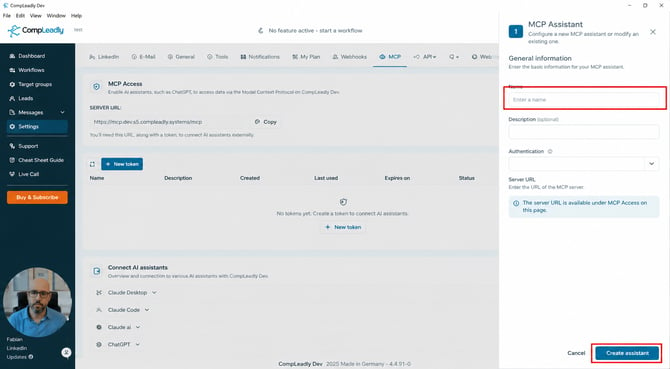
Go back to the MCP tab in CompLeadly and click + New token.
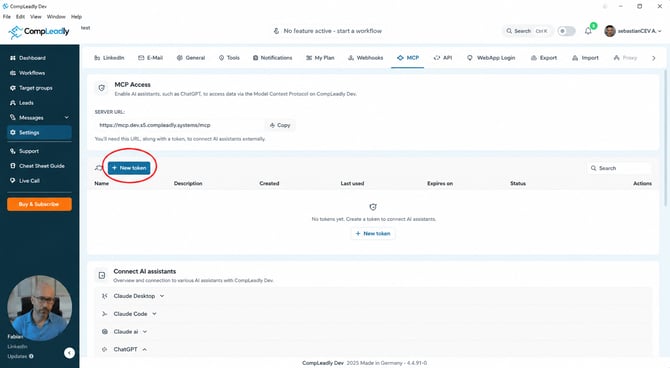
Give the token a name (e.g. ChatGPT). You don’t have to set an expiration date – leaving it empty means the token never expires. Then click Generate token.
Step 8 – Copy token (only possible once!)
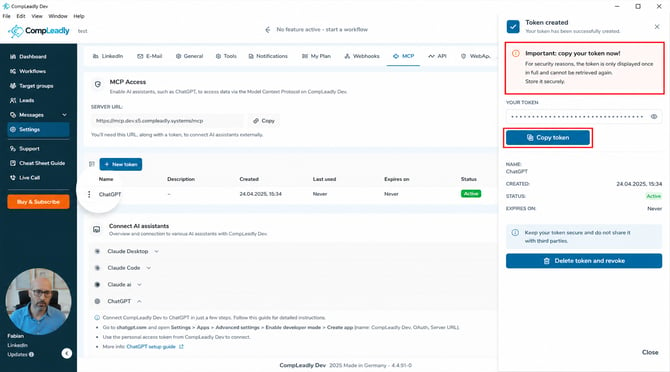
Click Copy token.
Attention: For security reasons, the token is only displayed in full once and cannot be retrieved again afterwards. So copy it now. We recommend not saving it permanently anywhere – whoever has the token can access your CompLeadly account. If you lose it, simply delete it and create a new one.
Step 9 – Paste token into ChatGPT and connect
Go back to the login screen in ChatGPT, paste the copied token into the Personal access token field and click Connect with token.
Step 10 – Confirm connection
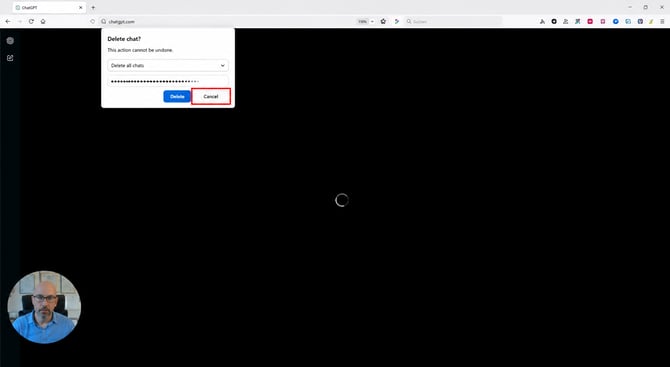
The connection will be established. If the browser offers to save the password, you can click Not now.
After that, you’ll see in CompLeadly that MCP is connected, and in ChatGPT under Apps you’ll see the activated connector.
Step 11 – Use it in chat
Activate the connector in a new chat via the developer mode area in the input field. Tip: Type @CompLeadly, then CompLeadly MCP will appear immediately.
Now you can get started, for example:
-
“What access do I have?” – ChatGPT lists all available areas for you (workflows, target groups, statistics, Smartchat, chat statuses, Knowledge Base …).
-
“Why were no requests sent out?” – for the technical check.
-
“Which target groups work best?” – for analyses.
Extra step
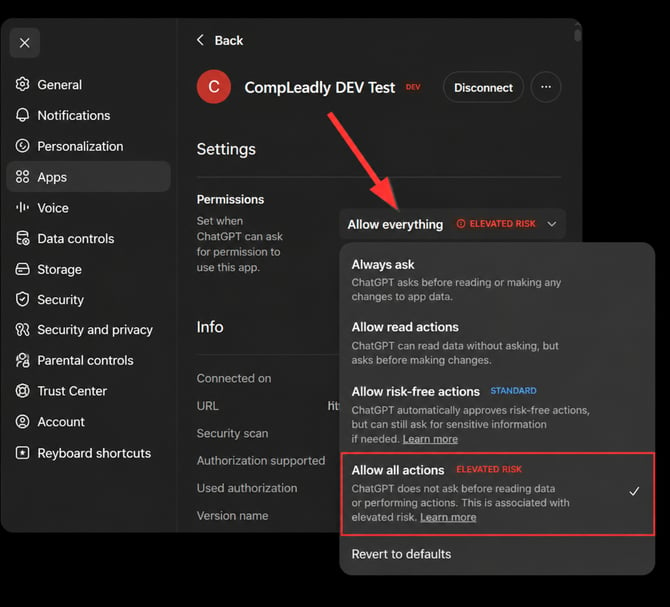
If the app keeps asking for permission, then activate yes.