Open the AI of your choice – ChatGPT, Claude, Grok, or another one. The only important thing is that the connection to CompLeadly (MCP) is set up.
[THIS IS HOW TO CONNECT TO THE AI]
The process is the same everywhere. Your task will go into the input field in a moment.
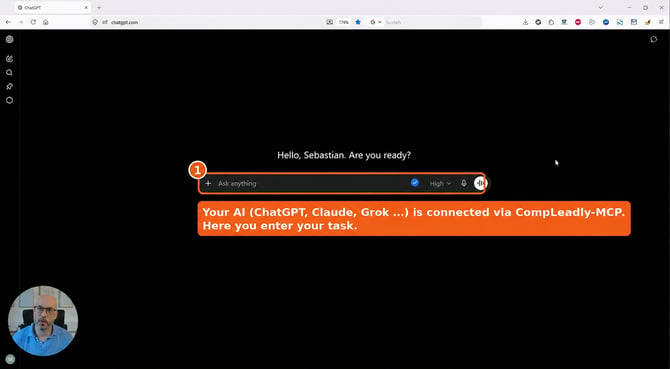 Step 1 – Open your AI
⚠️Image too small?
Right-click on the image and then “open in new tab” to enlarge it, or zoom in.
2. Give the task to the AI
Give your AI a clear task with the desired filter criteria and click Send. You can expand the task as much as you like (e.g. provide a guide). The following prompt is a simple start:
Prompt (Example)
Search the X latest Smart Chat messages with the property:
Last message from user = false
Has replied = true
Archived = false
Status 1 = NONE or 3 = SKIP
And write a suitable reply and save it as a draft.
-
You must replace the X with the number of latest messages. You can also say: all latest messages.
-
And you can individually replace the last sentence with your own prompt, your guide, or anything else.
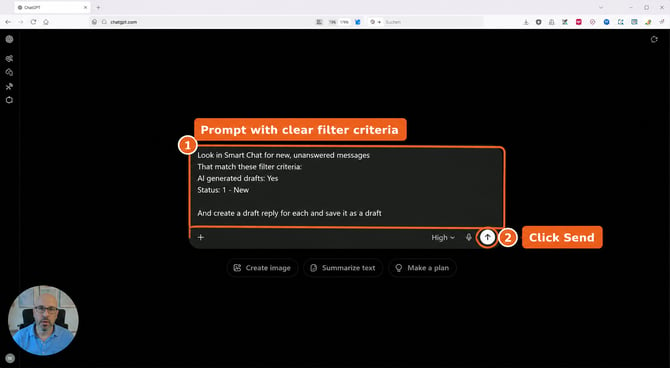 Step 2 – Give the task to the AI
3. Allow access & wait for the result
The AI will ask once for permission to access CompLeadly – click “Allow once” (or “Always allow”). After that, it will work briefly and report that the drafts have been saved. Tip: You do not need to name the CompLeadly connector separately – the AI usually finds it itself.
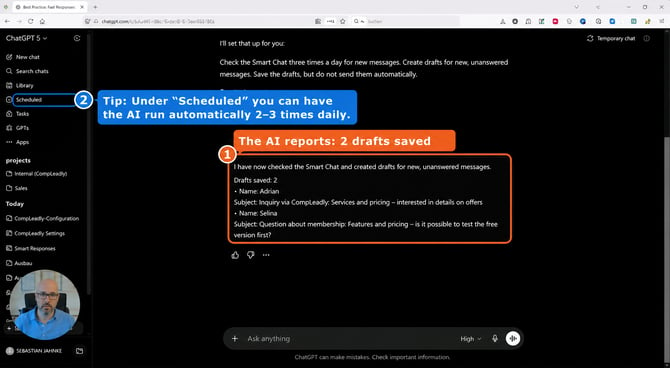 Step 3 – Allow access & wait for the result
4. Review drafts in CompLeadly
Switch to the “Draft” filter in Smart Chat in CompLeadly. There you will find the replies created by the AI. Important: A draft is not sent automatically – you remain in full control.
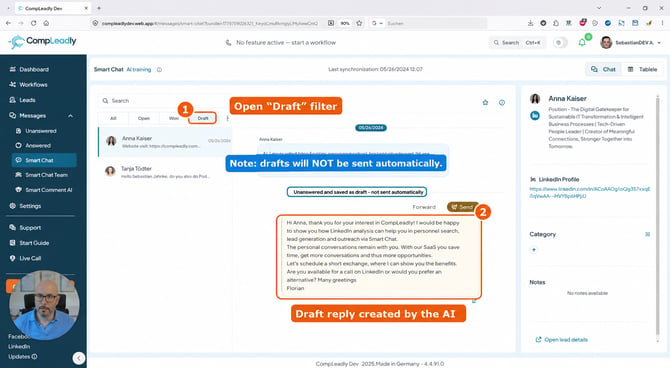 Step 4 – Review drafts in CompLeadly
5. Adjust & send
Read the draft, adjust it if needed (“AI Optimization” can optionally help with fine-tuning), and then click Send. Done.
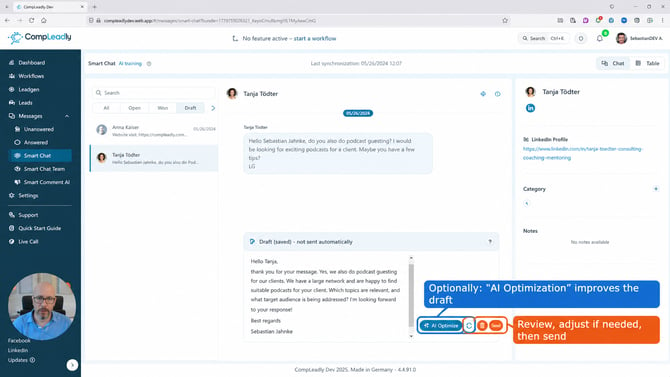 Step 5 – Adjust & send
↻ Let it run automatically
You can also schedule the task in your AI – for example, “Check Smart Chat three times a day (12 p.m., 3 p.m. …) and create drafts for new, unanswered messages”. You can find scheduled tasks in the AI under “Scheduled”. This way, the drafts are created automatically without you having to do anything.
Pro tips
-
Draft first, then send automatically: At the beginning, let the AI only save drafts. Only once your prompt works well do we recommend switching to direct sending.
-
Provide a guide: You can use long prompts – e.g. “Use my guide” or “I sell XY, think about how best to get your foot in the door”.
-
Create a guide from history: The AI can read your latest messages and build its own reply guide (skill) from them – based on what has worked well for you so far.
-
Reply quality: With the “High” setting, the replies are better, but take longer.