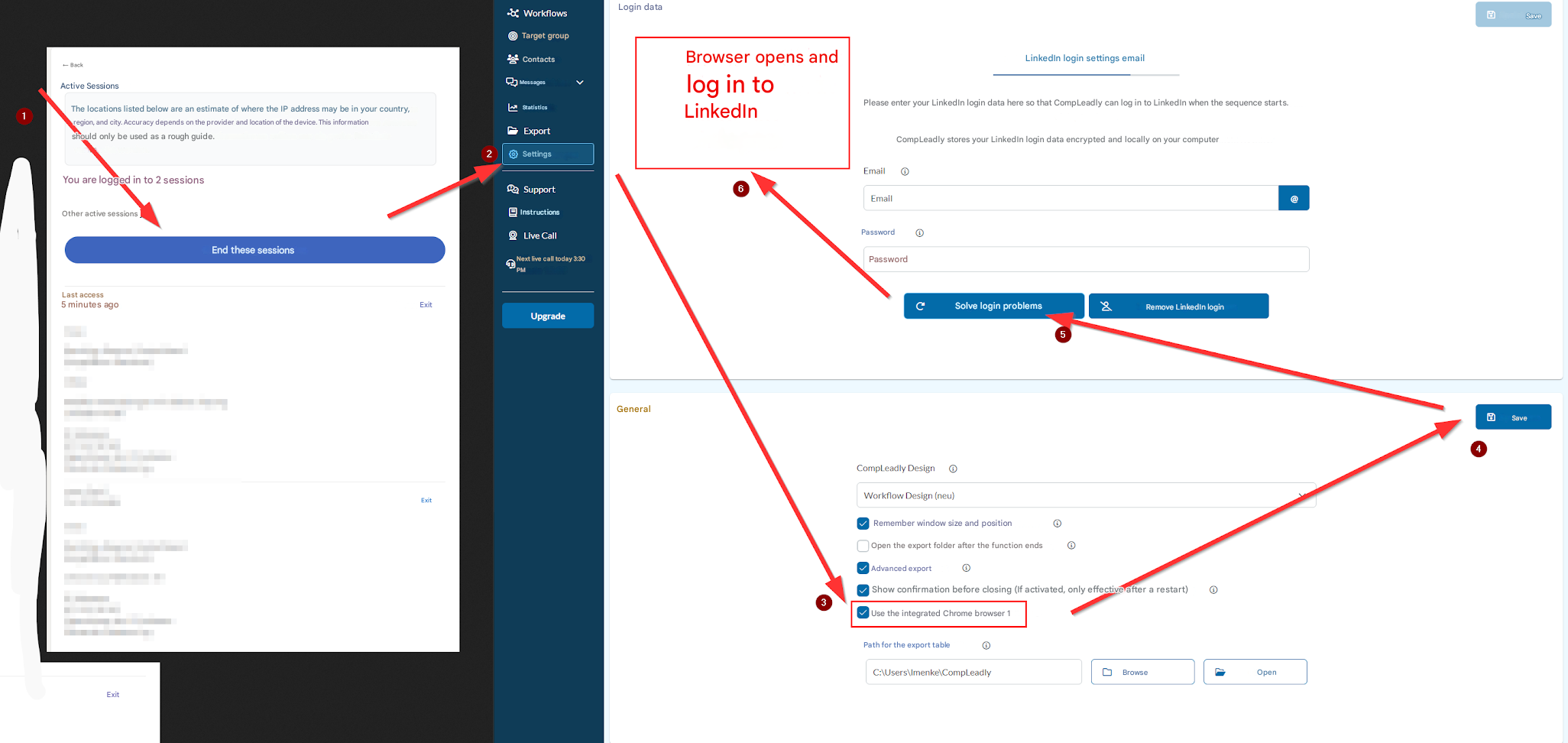
Step 1:
End old LinkedIn sessions.
- Open LinkedIn:
Go to your LinkedIn settings and navigate to the “Sign in & security” section. - End old sessions:
Under “Active sessions,” you’ll see all logged-in devices.
Click on “End these sessions” so that no old sessions interfere.
Step 2:
Go to the settings in CompLeadly (in the left menu).
Step 3:
Scroll down and check the box for Use integrated Chrome browser.
Step 4:
Click Save to apply the setting.
Step 5:
Click on “Solve login issues.”
Step 6:
A browser window will open automatically – log in to LinkedIn there."