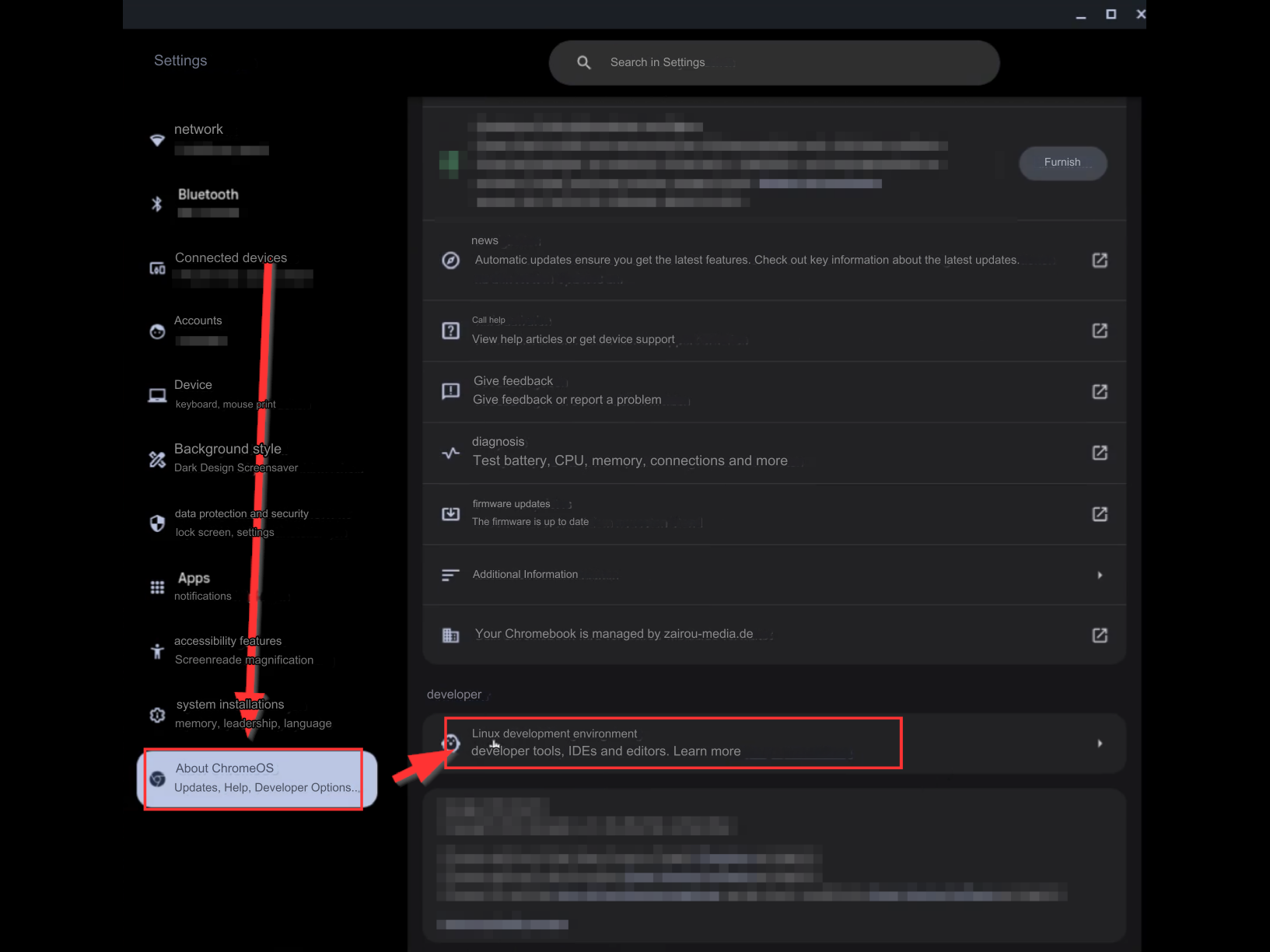
- Go to Settings and then Linux Development Environment ➔ Click on “Set up” if necessary.
- Select 10GB as the disk size.
- Click on “Set up”.
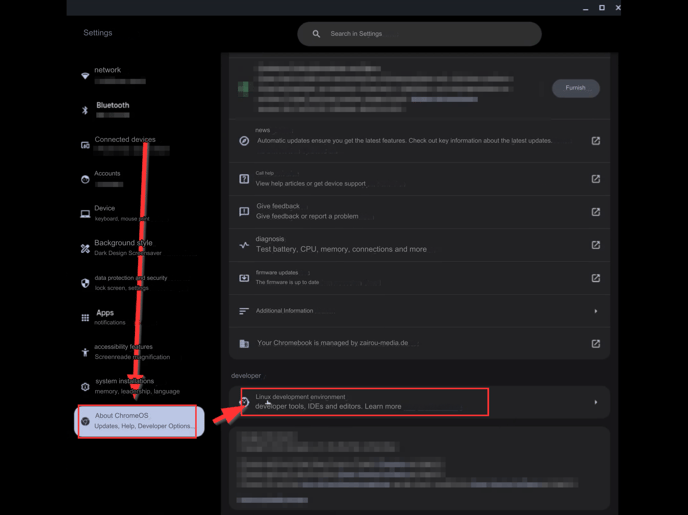
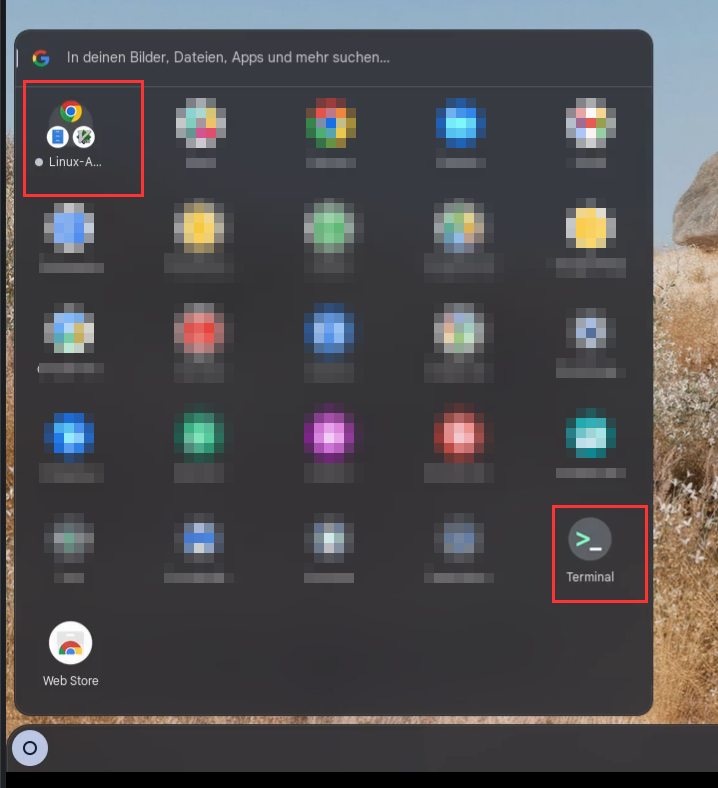
- After the setup, the “Linux Apps” folder and the terminal should be visible in the start menu.
- Next, download the CompLeadly Linux app through your browser ➔https://linux.compleadly.de/
-
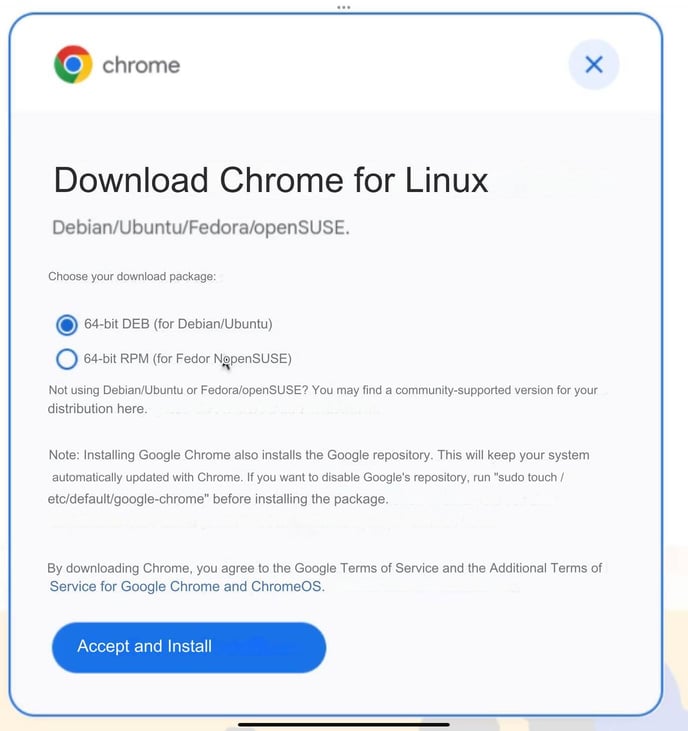
Then, download Chrome for Linux
-
Select 64-Bit DEB (for Debian/Ubuntu).
-
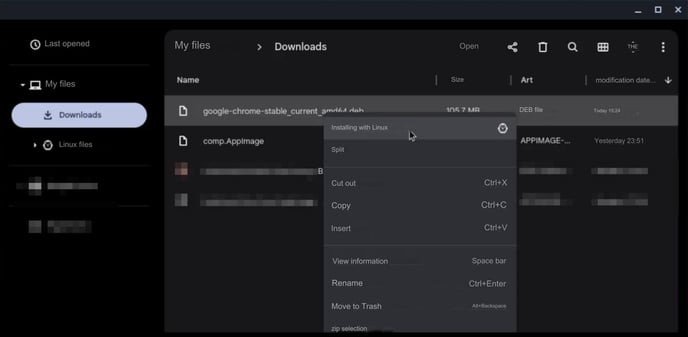
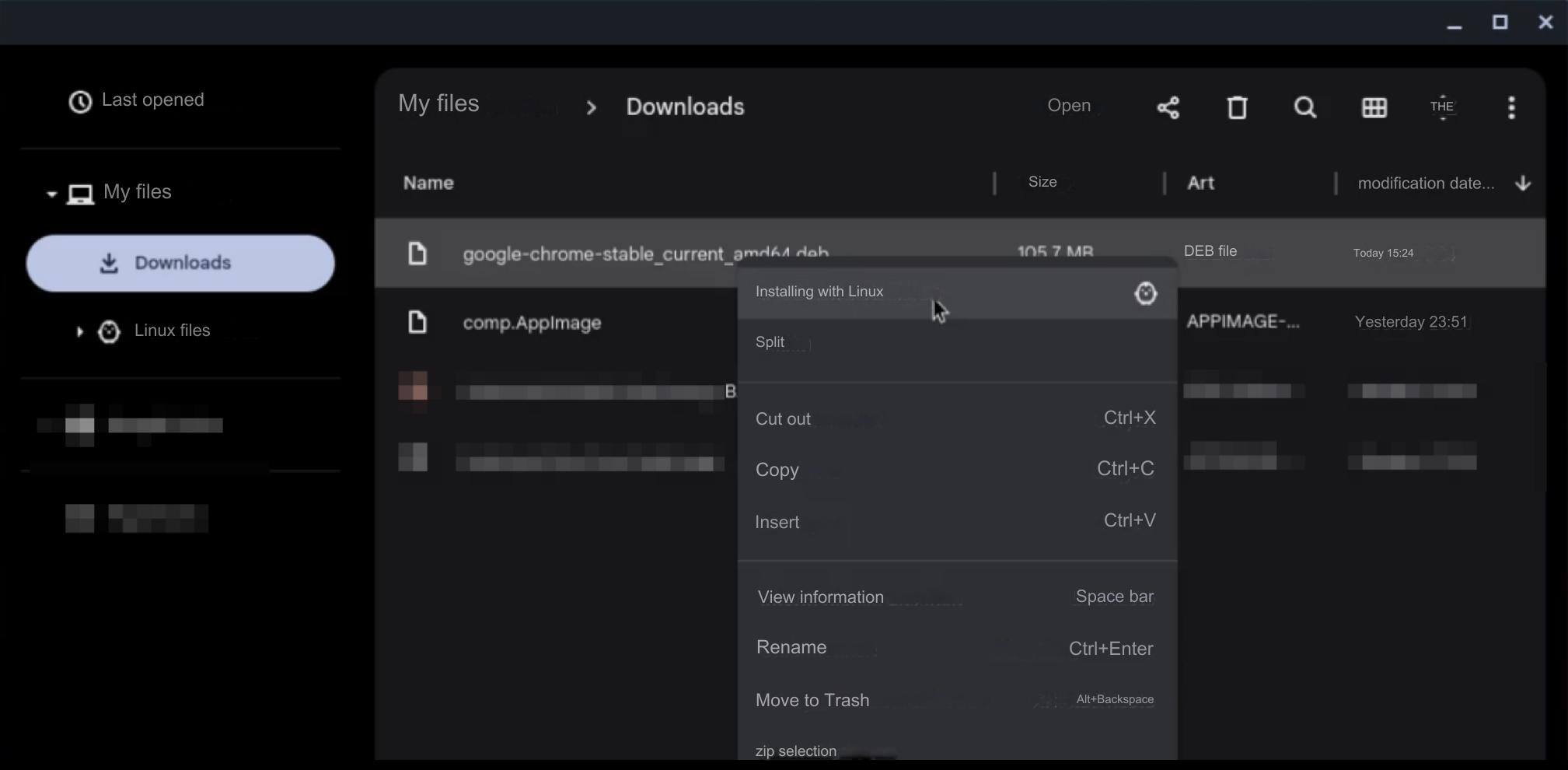
Go to your Downloads folder and install the Chrome file for Linux by right-clicking on the file ➔ Install with Linux.
-
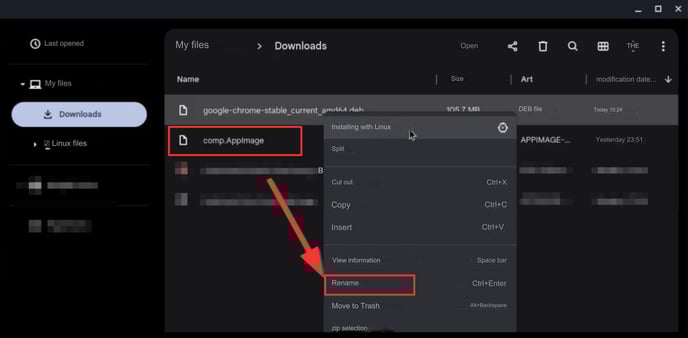
Rename the CompLeadly download file to comp.AppImage.
-
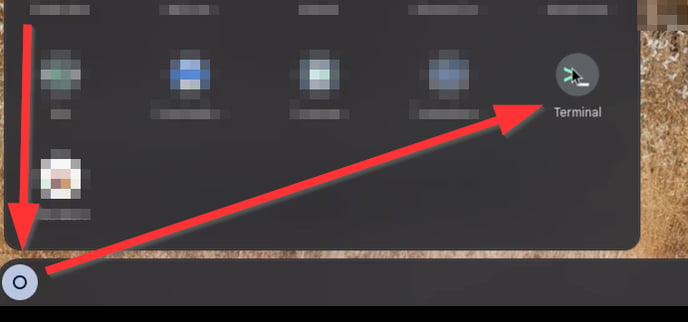
Open the terminal.
-
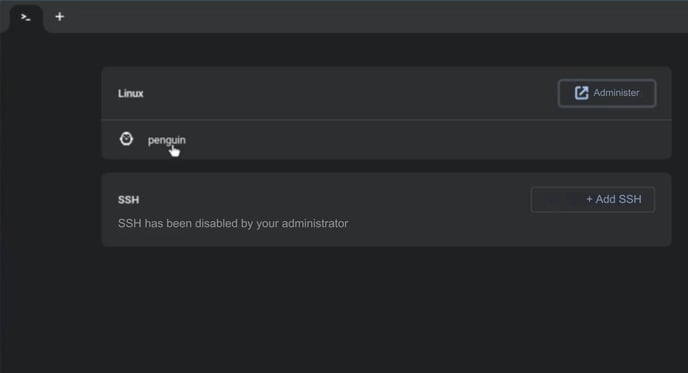
Click on Penguin.
-
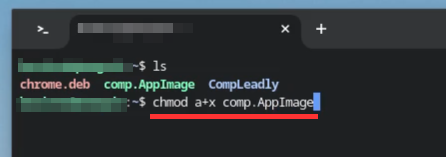
With the command “ls”, the files available for execution should be listed.
-
Install CompLeadly by entering the command “chmod a+x comp.AppImage”, then press Enter.
-
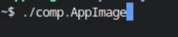
Now you can open CompLeadly by typing “./comp.AppImage” and pressing Enter.
If you want to open CompLeadly again after restarting your computer, repeat steps 10 and 11 in the terminal.