Creation of a LinkedIn link as a temporary solution
If you need to quickly generate LinkedIn links for your contacts, there is a simple temporary solution that you can implement in a few minutes. This method is especially useful if you want to ensure that the generated links do not accidentally pertain to real people.
Step-by-step guide
- Create LinkedIn link templates: Generate a LinkedIn link that does not have to be correct. The format of the link should look like this:
https://www.linkedin.com/in/FIRSTNAME-LASTNAME-FAKE - Replace "FIRSTNAME" and "LASTNAME" with the corresponding data from your table.
- Avoiding confusion: Adding "FAKE" at the end of the link helps to avoid confusion. If you want to use the table again in a few months but for a LinkedIn function like connecting, no incorrect person will be contacted.
- Using formulas in Excel: With the help of Excel formulas, you can automatically generate these links. Here is an example of a simple formula that you can use in Excel:
="https://www.linkedin.com/in/"&A2&"-"&B2&"-FAKE" - In this example,
A2refers to the cell with the first name andB2to the cell with the last name. The word "FAKE" is added to ensure that it is a placeholder and no real people are affected.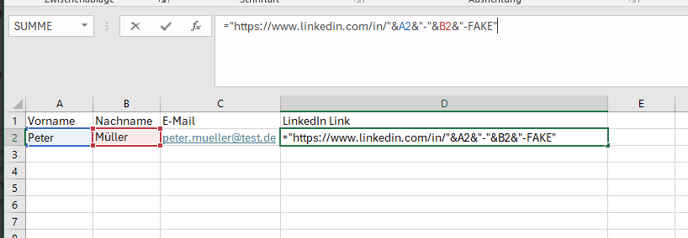
- Creation of the links: Enter the above formula into a cell and then copy it for all relevant entries in your table. Within seconds, you have created a fake LinkedIn link for each entry.
File format
If you want to upload your table, make sure that you only upload files in .xlsx format. Other formats are not supported.