However, there is always a risk of losing these connections due to LinkedIn’s technical issues or unexpected account problems. That’s why it’s important to regularly back up your contacts and manage them securely. Here’s how you can optimally back up your LinkedIn contacts.
1. Manually Exporting Contacts – Step-by-Step Guide
LinkedIn provides a built-in function to export your contacts.
- Direct Link: https://www.linkedin.com/mypreferences/d/download-my-data
Alternative way:
-
Go to Your Privacy Settings:
- Log into your LinkedIn account and click on your profile picture in the top right corner.
- Select “Settings & Privacy” from the dropdown menu.
-
Select Data Export:
- In the left menu, go to Privacy.
- Choose “Request a copy of your data” and select the data you want to export.
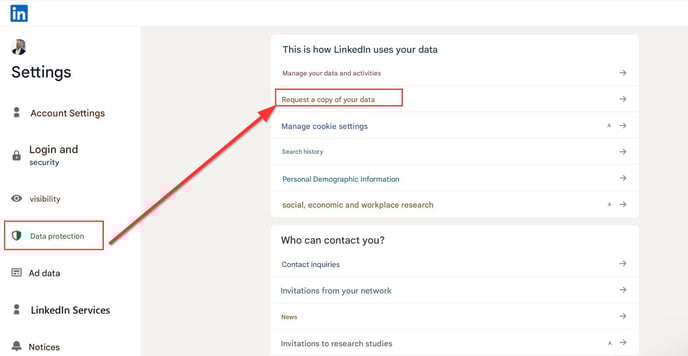
- LinkedIn will generate a file with your contact data.
- Direct Link: https://www.linkedin.com/mypreferences/d/download-my-data
3. Download the File:
- Within a few minutes, you will receive an email with a download link.
- Save the file securely on your computer.
2. Automated Network Backup with CompLeadly
With CompLeadly, you can not only expand your network efficiently but also back it up regularly. CompLeadly offers various export options to help you manage your contacts securely.
- Export to Excel Files
-
CompLeadly allows you to automatically export your contacts at regular intervals in various table formats, such as Excel. Use the Network Export feature.
-
This enables you to create a backup file containing all essential details of your connections, including names, job titles, and contact information.
-
- Integration with Google Sheets
-
For users who want dynamic and flexible contact management, CompLeadly offers direct integration with Google Sheets. Unlike Excel exports, contact data is continuously added to a Google Sheets table. Use the Network Export feature for this.
-
This way, you can automatically consolidate all exported data into a cloud-based spreadsheet that is accessible anytime, anywhere.
-
-
Direct Export to a CRM System
- If you use a CRM system, you can directly transfer your contacts into your customer management database.
- This ensures that your data remains synchronized and is available for sales activities.
⤴ Import all new LinkedIn contacts into your CRM
3. Benefits of Regular Network Backup
- Protection Against Data Loss: Even if your LinkedIn account gets compromised or you accidentally lose connections, you will always have an up-to-date backup of your contacts.
- Efficient Management: You can sort, filter, and use your exported data for targeted sales or marketing campaigns.
- Centralized Contact Management: With CompLeadly, you can seamlessly combine your LinkedIn contacts with other data sources to get a complete view of your network.
Conclusion
Backing up your LinkedIn network is essential to protect and utilize your professional contacts effectively. Whether you choose manual export or CompLeadly’s automated solutions, regular backups give you security and flexibility.
Make sure you never lose track of your contacts and stay prepared at all times!