When you click on the "all" next to the message box, various languages will be displayed.
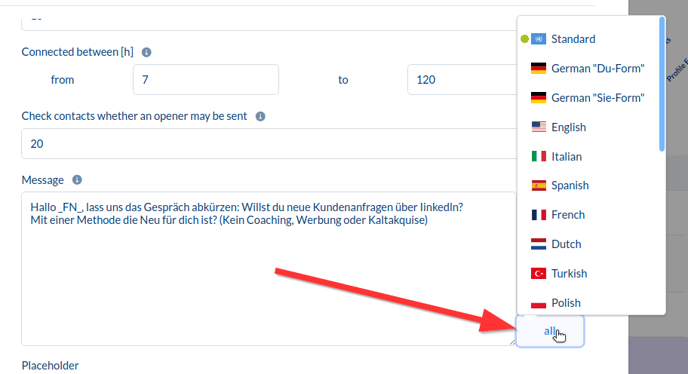
When you select a language and set a text for it, CompLeadly checks the language in the chat with your contact.
If the language is, for example, French, it will write the text you have saved under French. If the language is different, one that you have not set, the "Standard" text will be used.
For instance, if you only have English contacts, it's completely sufficient to set a text only under "Standard" and not additionally under "English".
The green dot next to the language indicates if there is a text entered.