The steps are identical in Claude Desktop, Claude Code, and Claude.ai (web version).
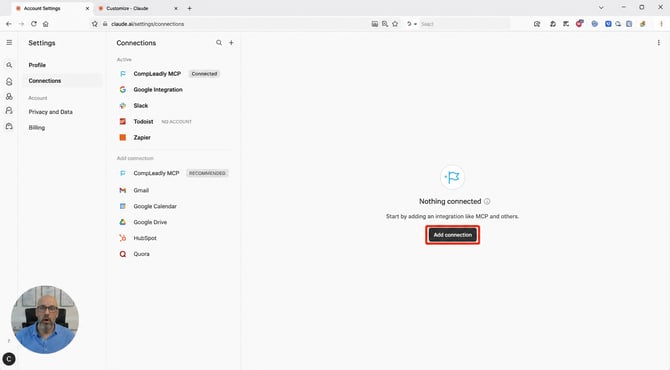
1. Open connectors in Claude
In your Claude account, go to Customize in the left sidebar and then to Connectors. This works the same way in Claude Desktop, Claude Code, and Claude.ai (web).
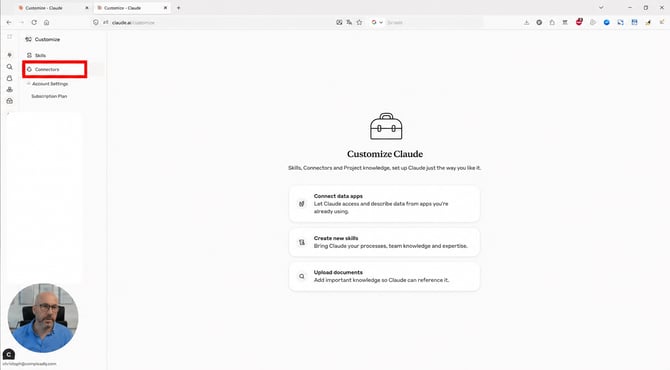
⚠️Image too small?
Right-click on the image and then “open in new tab” to enlarge it, or zoom in.
2. Copy the server URL in CompLeadly
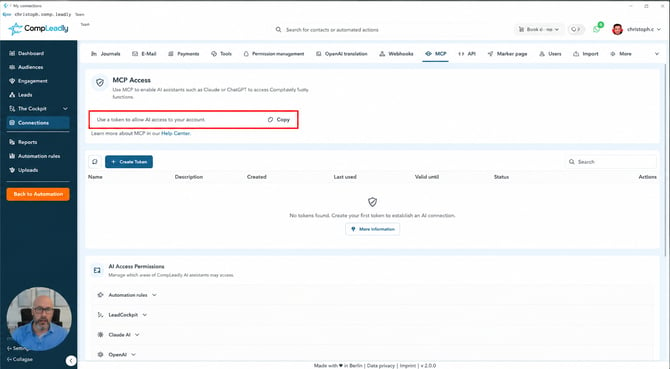
Open Settings in CompLeadly and switch to the MCP tab. There you will find the address of your MCP server at the top under Server URL. Click Copy – the URL is unique to your account.
3. Add a new connector
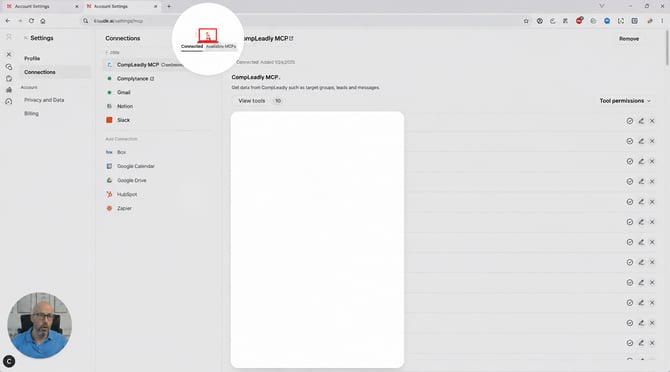
Back in Claude: Click the + (add connector) in the top right of the connectors list.
4. Enter name and URL
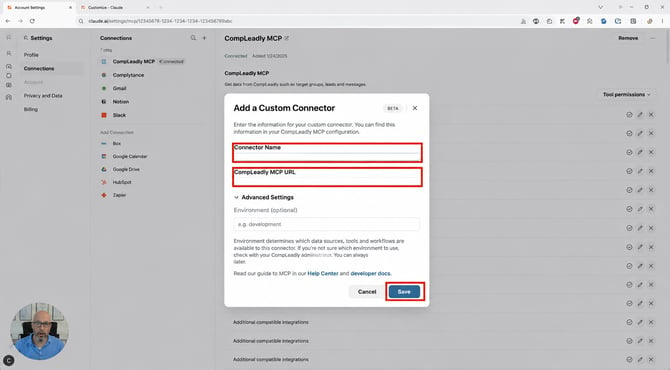
Give the connector a name (e.g., CompLeadly Test MCP), paste the URL you just copied into Remote MCP Server URL, and click Add. You can leave the OAuth fields empty.
5. Connect the connector
The connector will now appear under Not connected. Click Connect.
6. Generate access token
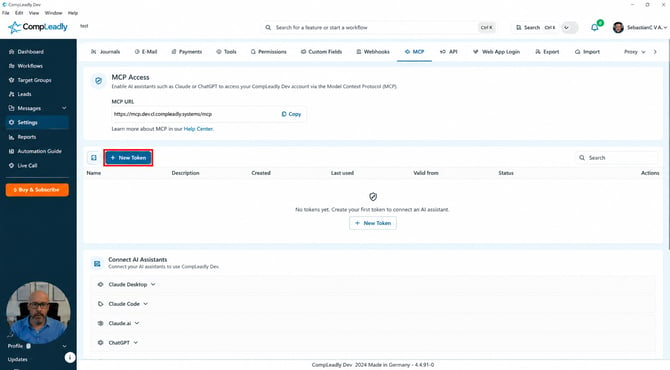
Now you need a personal access token. To do this, go back to CompLeadly (Settings → MCP) and click New Token. You can create as many tokens as you like.
7. Name and create token
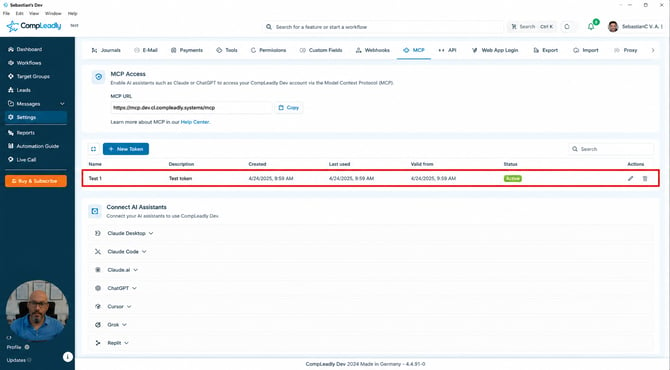
Give the token a name (e.g., Claude), optionally an associated expiration date, and create it. The token will be generated and is active immediately.
8. Paste token into Claude and connect
Copy the token, paste it into the token field in Claude, and click Connect with token. Done – CompLeadly is now connected with Claude. Under the tool permissions, you can see which functions Claude is allowed to access.
⚠️ Important – protect your token: Anyone who has access to this token gets full access to your CompLeadly (e.g., via another Claude, ChatGPT, or another AI). That is why the token is so long and is always displayed hidden. You can only copy it once – after that, you will only see the shortened version and will no longer be able to access the full token. If you lose it, you have to delete it and create a new one (and connect it).
What you can do now
Once CompLeadly is connected, Claude can access your data and functions. A few examples:
-
Fill SmartChat with replies based on the previous message history and use it to set up fully automated appointment scheduling via SmartChat.
-
Retrieve a target group analysis: “How good are my leads?”
-
Access target groups, SmartComment AI, SmartChat, and other functions – depending on which tool permissions you enable.